
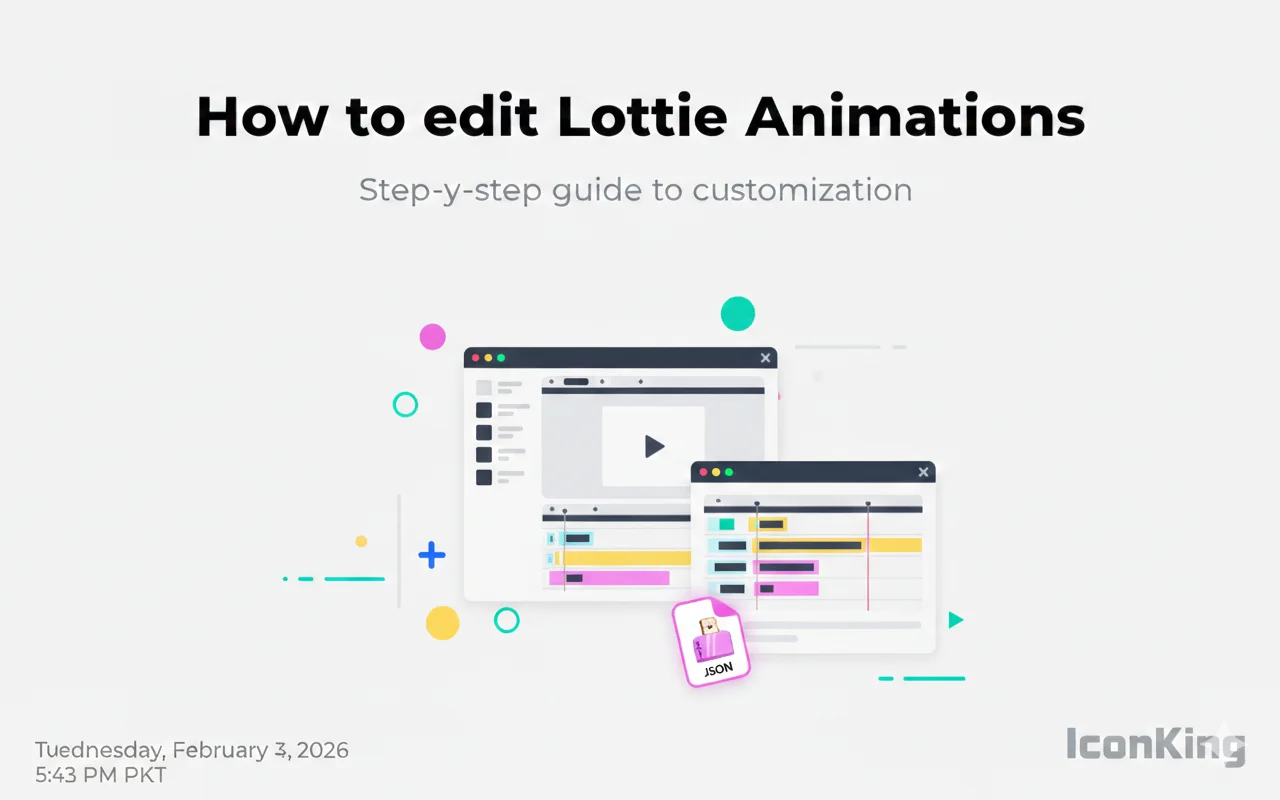
Introduction to Online Lottie Editors
Want to customize Lottie animations without downloading software or learning After Effects? Online Lottie editors make it possible to modify colors, timing, and other properties directly in your browser. This guide will show you how to edit Lottie animations online with ease.
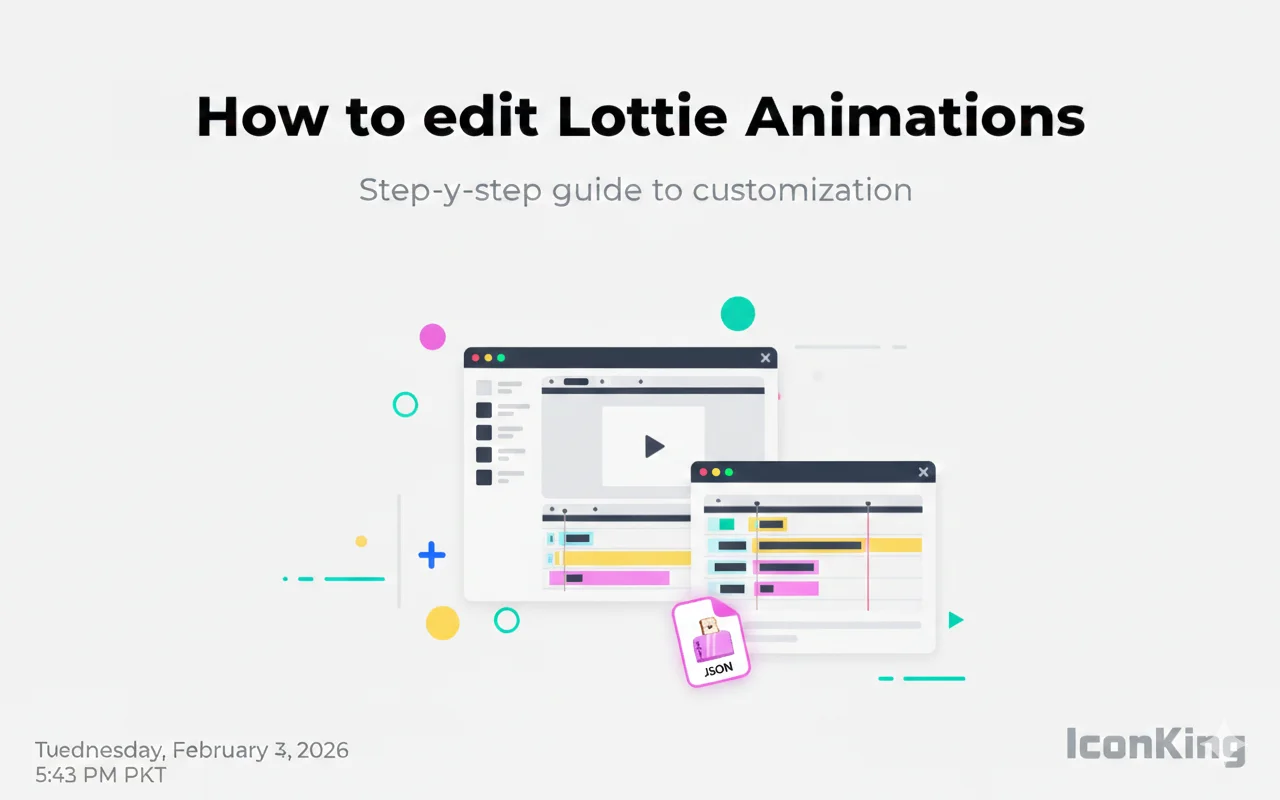
Why Edit Lottie Animations Online?
Online editors offer several advantages over traditional desktop software:
- No Installation Required: Work directly in your browser
- Quick Edits: Make simple changes in seconds
- Free Access: Most online editors offer free tiers
- Cross-Platform: Works on any device with a browser
- Beginner-Friendly: Intuitive interfaces for non-designers
Popular Online Lottie Editors
1. IconKing Editor
Our built-in editor on IconKing allows you to make quick adjustments to any animation in our library. Change colors, adjust speed, and preview changes in real-time.
📷 Image Space: IconKing Editor Features
2. LottieFiles Editor
A comprehensive online tool that offers color editing, layer manipulation, and testing across different devices and platforms.
3. Lottie Editor by Heroku
A simple, straightforward editor perfect for basic color and timing adjustments.
What You Can Edit Online
Colors and Themes
The most common edit is changing colors to match your brand palette. Most online editors provide:
- Color picker tools
- Hex code input
- Layer-by-layer color control
- Batch color replacement
📷 Image Space: Color Editing Interface
Animation Speed
Adjust the playback speed to make animations faster or slower. This is useful for:
- Matching animation duration to loading times
- Creating dramatic effects
- Syncing with other UI elements
Size and Dimensions
While Lottie animations are vector-based and scalable, you can optimize the canvas size for better performance:
- Adjust artboard dimensions
- Optimize for specific screen sizes
- Reduce unnecessary whitespace
Step-by-Step: Editing Your First Lottie
Step 1: Choose Your Animation
Start by selecting a Lottie animation from IconKing's library or upload your own JSON file.
Step 2: Open in Editor
Click the "Edit" button to launch the online editor. The animation will load with all its layers visible.
📷 Image Space: Step-by-Step Tutorial Screenshots
Step 3: Make Your Changes
Use the color picker to change colors, adjust the speed slider, or modify other properties as needed.
Step 4: Preview Changes
Always preview your changes in real-time. Play the animation to ensure everything looks perfect.
Step 5: Export and Download
Once satisfied, export your edited animation as a new JSON file ready for implementation.
Advanced Editing Tips
Understanding Layers
Lottie animations are composed of multiple layers. Understanding the layer structure helps you make precise edits:
- Shape layers contain vector graphics
- Text layers contain typography
- Image layers contain raster graphics
- Adjustment layers affect multiple layers
📷 Image Space: Layer Structure Diagram
Color Consistency
When changing colors, maintain consistency by:
- Using a cohesive color palette
- Keeping contrast ratios accessible
- Testing on light and dark backgrounds
Performance Optimization
Keep your edited animations performant:
- Remove unnecessary layers
- Simplify complex paths
- Reduce the number of keyframes when possible
Common Editing Mistakes to Avoid
- Over-editing: Too many changes can break the animation
- Ignoring file size: Excessive complexity increases file size
- Skipping testing: Always test across devices and browsers
- Losing the original: Keep a backup of the original file
Conclusion
Online Lottie editors democratize animation customization, making it accessible to everyone regardless of technical skill. Whether you need to match brand colors or adjust timing, these tools make it quick and easy to customize animations perfectly for your projects.
Start editing Lottie animations on IconKing today and create custom animations in minutes!